I'm Katie Lyon and I'm a 2nd grade teacher, VP and blogger at Mrs. Lyon - Teaching: The Art of Possibility. On my blog, I share classroom tips, teaching ideas, and classroom resources. I'm a big fan of technology, and am in charge of our school's 1:1 iPad program. I share tech tips that can be applied to the classroom.
Pages
Showing posts with label Techie Thursday. Show all posts
Showing posts with label Techie Thursday. Show all posts
I'm a little late on my Techie Thursday but was so excited about this find that I couldn't wait until next week. So without further adieu here it is. Have you heard of AppsGoneFree? This awesome little app gives you a DAILY list of what paid apps are on special for FREE!
Unlike AppGratis or other ones of it's kind, AppsGoneFree will list more than one app. As of today, there were 11 apps that were listed for free. You can also look at past dates and see what apps were free and if they are still available for free, you find that out as well.
The apps range from educational to art to productivity. For example, today I was able to download Fiete, which is an interactive picture book that helps children work on their fine motor skills. Perfect for my 19 month old WHO loves fooling around with the iPad.
For my students in 5th grade, I downloaded Mozaikr, which will allow them to create mosaics from their photos. This should be fun to use in art class - not quite sure what I'll do with it but hey I couldn't pass it up.
It's definitely worth having the notifications sent to you on a daily basis as you never know what will come up.
Have you ever heard of Apps Gone Free? What is the best paid App you ever got for free? What app do you think I should be on the look out for?
As my 5th grade class continues the pilot program for the 1:1 iPads which will be in place school-wide next year, we also continue the search for a great homework app. Of course, each student at my school is provided with an agenda book where they can write out by hand what their homework assignment is. There are of course pros and cons to this. In my classroom, I'm all about accountability and responsibility. So my philosophy was always that the students are RESPONSIBLE to write their homework down. Of course, as teachers we know that as wonderful of a philosophy that might be, it doesn't always happen. Which then leads to issues of parents not know what the assignments are, which leads to parent/teacher conferences to try and solve the problem which leads to me having to potentially check EVERY single agenda to make sure students have written down their assignments. And I'll be honest.....that's just not going to happen.
Sooooooo.....in efforts to save time for us all, still make my students accountable but even more importantly inform parents of what assignments are so they can be sure to provide the support needed at home, I searched out apps for students to record their assignments. The first app we tested out was called iHomework. It was nice and had many cool features but I found that it was unreliable at best and didn't work for what I needed. Many times it would force close, didn't provide a link to parents, tended to confuse students on how to enter in assignments and on top of it all, cost $1.99 per iPad (of course you could get the educator discount if you bought 20 or more of it). Don't get me wrong - this is probably a perfect app for a high school students or even college students but for 3rd - 8th grade it didn't cut it. However, it may be perfect for some.
So while my students had the option between using the iHomework app or using the traditional paper/pencil agenda, I continued to look. After doing some research I came across MyHomework. The app itself is free (however I think if you load it onto a computer it costs money). The app itself requires students to create a personal login and password (unlike iHomework). It does request that the students are 13 or older but with parent permission that isn't a problem. Students have the ability to create different classes (which is great for middle school students) and can enter in Lessons, Assignments and Tests. They can also download this app onto several devices and it will seamlessly sync between all of them which is what iHomework lacked. With this ability, my students' parents load the app onto their smartphone or device and login using their child's information. This way they can see what the assignments are and when they are due. However, this is only TRUE if the student is recording all the assignments down.
This is where this app gets EVEN better! There is also a teacher component available as well (FREE). As a teacher, I can go in and create my class(es) and add in assignments, lessons, tests, announcements, syllabi, etc. Students can then search for me and "JOIN" my class. Instantly providing them with all the information I'm inputting. When I first signed up for this resource, I still made it the responsibility of the student to input their assignments in. But I found time and time again that a couple of my students just would not enter them all in. Which resulted in their parents still not knowing what was due and a lot of incompletes and zeros. I have since started to input my assignments in daily (it takes me less than 3 minutes!) and still makes my kids accountable for actually doing the work. Because when it comes down to it, I'd rather them be completing the work instead of just writing it in their agenda. Again, my students' parents see everything I'm putting in because they either are signed in as their child on their device or they created their own account and "joined" my class. How awesome is that?!?!
What the students see on their iPads
And again, the best part about this app and all it's fabulous features - it's F-R-E-E!!! You can't get better than that. :-)
So don't waste anytime - check it out. (And no - I don't get royalties.....though I should! haha)
When you sign up as a teacher, you need to first input your email and you'll receive an "invitation" via email. I'm not quite sure why the developer went that route but I found that I received my invitation in a matter of hours of requesting it. Students can sign up immediately.
We've all seen them. Those black and white square boxes that remind us of barcodes on tags, books, etc. Now we find them all over! And in case you didn't know, they are called QR Codes. They can be found on movie posters, on the back of books, in magazines, on products we buy - simply every where! Every once in awhile you may scan one and find it takes you to a website which will show you perhaps an advertisement of some sort, a movie trailer or perhaps something different altogether.
The more I saw these boxes in the world around me, I tried to think of ways I could use them effectively in my classroom. As many of you already know, my students are piloting a 1:1 iPad program, so having a device that could read the QR Code was not an issue. I've started with just one class and eventually will use them in more subjects once the ideas hit me.
We've started with math class. So often I will teach a lesson and walk through multiple examples with my students only for them to go home and for whatever reason blank on what was taught. They'll come back the next day, I'll go over more examples and the light bulb (hopefully) goes off! I thought, wouldn't it be more effective for them to see examples the evening they are working on their homework? Absolutely (in my humble opinion)!
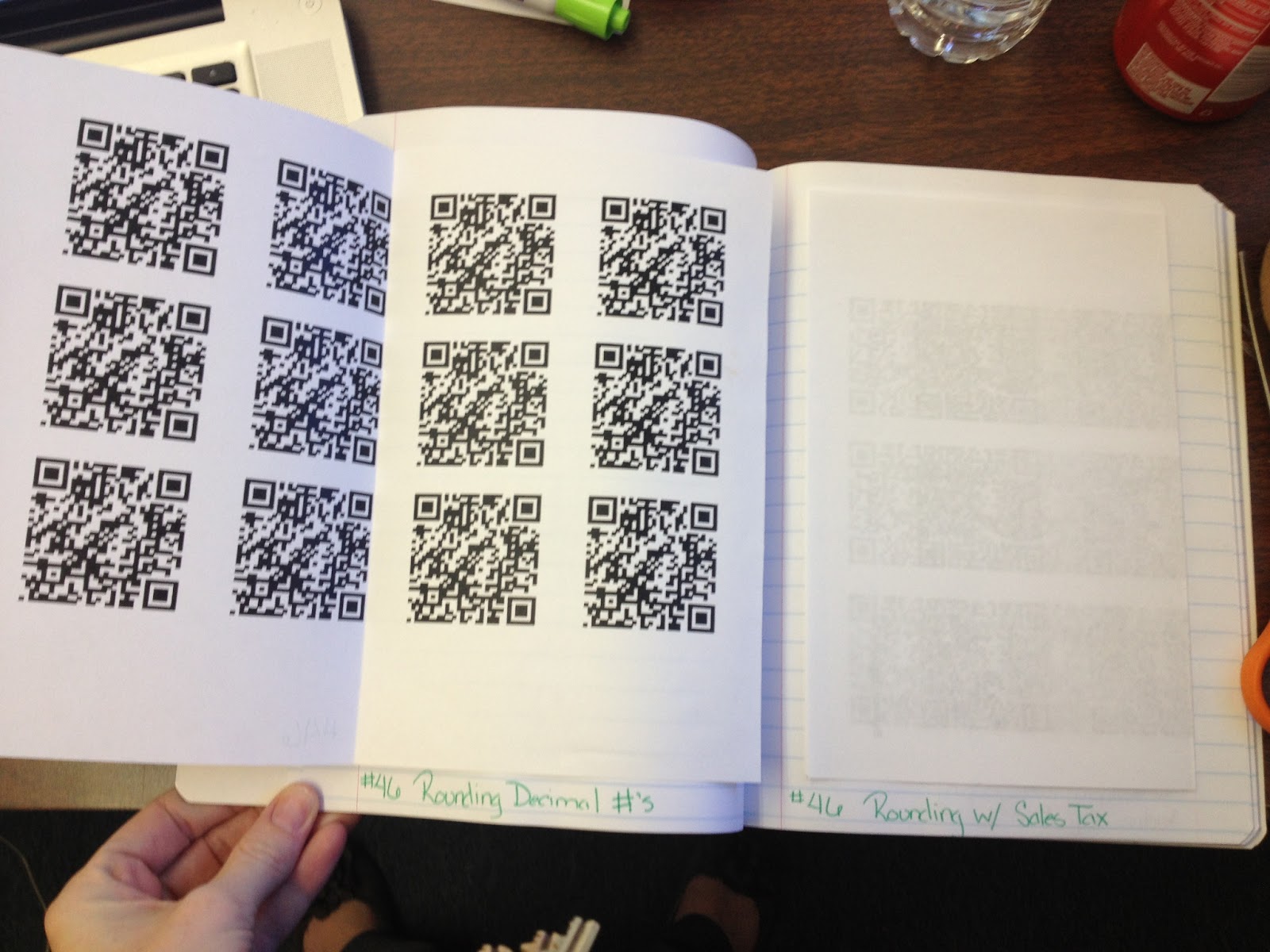
With that being said, I have now started to create short videos (I try to keep them 5 minutes or less) that are filled with examples from that day's lesson. Now, I know that I can find plenty of videos already created with the skills I'm teaching, however, our particular math program is very vocabulary heavy. So I make sure that when I'm creating the video, I'm using the vocabulary the students are also learning in class. Plus, the kids get a kick out of hearing my voice compared to someone they don't know. This way, I also know the videos won't one day be gone unless I get rid of them. I'm organizing all of my math QR Codes in a notebook where I glue in a
copy of the sheet I hand out to the students. This way, I will only
have to make a copy each year and not completely recreate them.
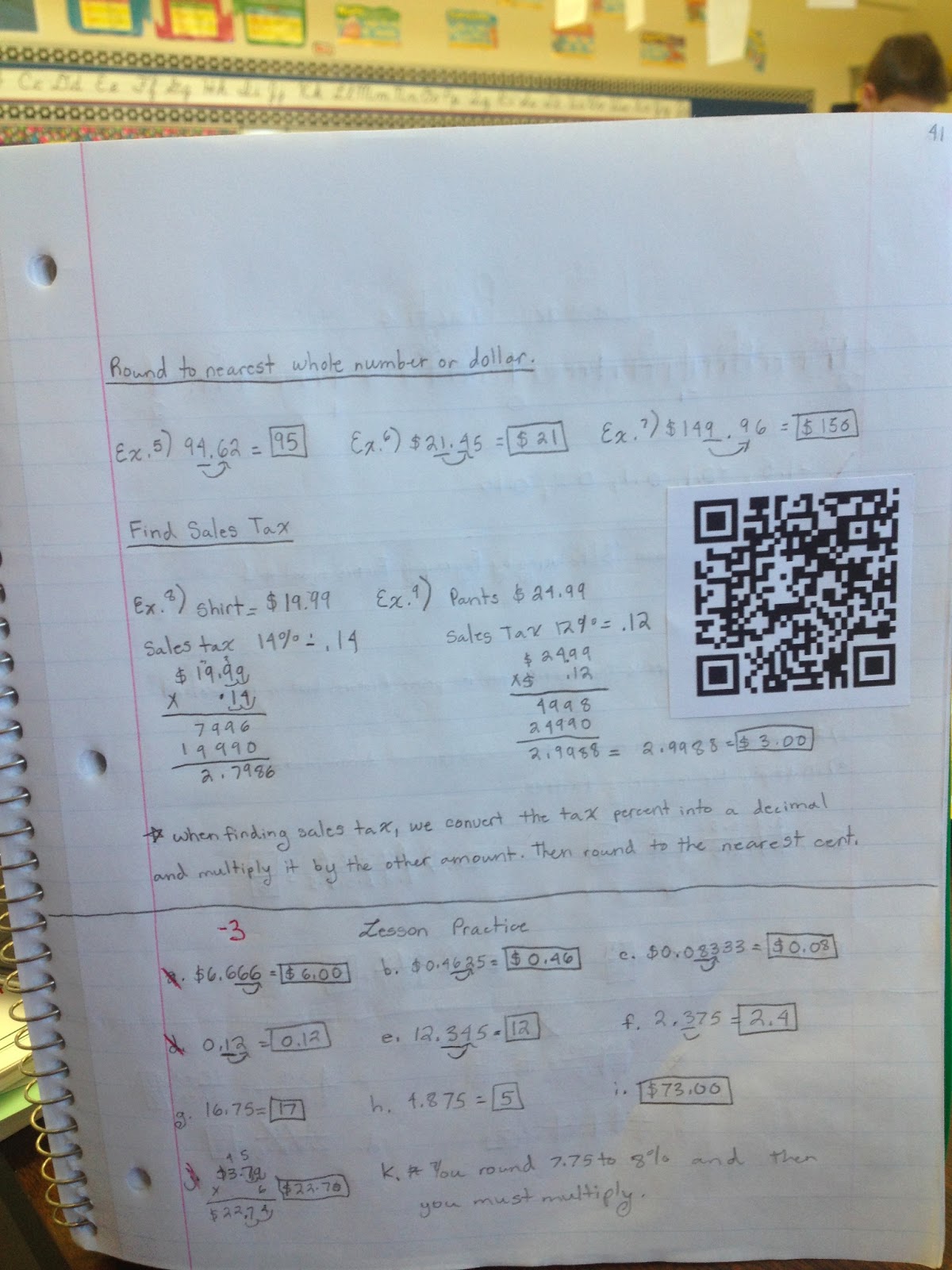
Creating the videos IS EASY! I use an app called ShowMe which is free but there are tons of other ones out there you can use. The nice thing about ShowMe is that I can easily record my video and upload it and it will immediately post it on the internet for me. From there, I take the web address they provided and go to Kaywa QR Code Creator. I simply cut and paste the web address in and click on Generate Free. It automatically makes me a QR Code which I then take a screen shot of and create a document of it (just copying and pasting it over and over so I have an entire sheetful). I print and cut out the QR Codes and the students glue them into their math notebook with their notes from that lesson.
Kaywa QR Code Creator Website
Students have on their iPad the App called Scan and when they want to see the video, they simply open up their notebooks and scan the QR Code. It will automatically take them directly to the video where they can watch it. The videos are nothing fancy and don't take long to make at all.
I've had a great response since I began doing this (only starting on Monday). And for students who were absent for some reason, this helps them too since they can still see examples being completed by me. I look forward to figuring out even more uses for this nifty little codes. I really think there are a ton of possibilities out there.
I even created sets of QR Code Task Cards for students to practice math and language arts. Check them out at my TpT store.
Do you use QR Codes in the classroom? Share below!
New year, new themes I've decided. I plan on keeping my theme of Market Mondays where I will post something that I have purchased for use in my classroom and give a quick review of it. However, now that I'm also utilizing 1:1 iPads in the classroom, I decided that my theme of Website Wednesday no longer fit what I wanted to do. So.....(drum roll please) I've decided to now do Techie Thursday in place of it.
These posts will feature anything that has to do with technology - websites, apps, ideas, etc... Of course I may post things that have to do with technology on other days as well but at least this will guarantee one technology post a week.
Today's Techie Thursday is all about one of my all time favorite apps that I use in the classroom with my students almost daily. It's called Popplet. This app is a visual tool to allow students (and adults) to visually organize their thoughts or data. I mostly have my students use it as a graphic organizer tool to organize their writing. However, check out the multitude of ways that Popplet creators see it being used in this screen shot taken from their website. I'll admit I'm at the tip of the iceberg. There is so much more I could be doing with this tool!
Uses for Popplet
Let me explain a bit more. You can easily download Popplet from the iTunes store. There are two versions - the lite version which is free or the paid version which is $4.99. Obviously with the lite version there are restrictions and I have found with my time using Popplet it is WELL worth the $4.99 they are asking for. However, if you don't have an iPad or other Apple device don't let that deter you from checking this cool tool out. They also have it available online at www.popplet.com. You can create an account and begin making Popplets right away. They do have a maximum limit of 5 Popplets that can be created but now you can sign up for a Popplet plan depending on how much you plan on using it. They even offer school discounted pricing per student account.
Students can create individual Popplets which only they can see and work on or they can do collaborative Popplets. Below is an AWESOME example of one from the Popplet Facebook page that another teacher did with her students.
There are a variety of features available and this particular app is extremely easy to use and begin working with immediately. You have the ability to change colors, import photos, videos, draw pictures and so on.
Here is a video that eduTeacher created to show the basics of getting started in Popplet.
In addition to their webpage, Popplet also has a Facebook page. I highly recommend you also check that out. It's awesome to see how teachers in ALL grade levels are using this tool in their classroom.
Do you use Popplet? What are some activities you've done? Share below!

 Unlike AppGratis or other ones of it's kind, AppsGoneFree will list more than one app. As of today, there were 11 apps that were listed for free. You can also look at past dates and see what apps were free and if they are still available for free, you find that out as well.
  The apps range from educational to art to productivity. For example, today I was able to download Fiete, which is an interactive picture book that helps children work on their fine motor skills. Perfect for my 19 month old WHO loves fooling around with the iPad.
  For my students in 5th grade, I downloaded Mozaikr, which will allow them to create mosaics from their photos. This should be fun to use in art class - not quite sure what I'll do with it but hey I couldn't pass it up.





 Posts
Posts


