Pages

Showing posts with label Google. Show all posts

Sunday, April 13, 2014

Going Paperless in the Classroom

Now that my class and I have 1:1 iPads, I have slowly begun the process of going paperless in my classroom.  This has been a slow process for me, as it is a major change from what we (students, parents, and I) know as "normal".  However, the more I have played around with Google Drive, the more I am finding just how easy it is.

For years, I have used Google Docs and Forms in my classroom. But for this week's part of Google Bootcamp for Teachers, I have decided to focus my efforts on the many ways you can use the Docs and Spreadsheets portion of Google in the classroom.  But be sure to check out all the posts that relate to Google Drive below.  I know that Jen, from Tech with Jen, did a fabulous post on creating quizzes using Google Forms so be sure to look at that!  She geared it towards primary teachers but trust me, you can easily adapt it to the older grades too.


Let's cover the basics on what Google Docs and Spreadsheets does allow you to do:

  • You can create Microsoft Word like documents (complete with images, tables, etc).
  • You can share these documents with other teachers, students, parents, etc.
  • You can choose to allow others to just view the documents, edit them, or allow them to comment on them.  
  • You can share these documents without email address but with a URL.
There is a lot of different things you can do but those are the basics of it.  :-)  

I'm huge in creating rubrics right now and one of my favorite ways of doing it is through spreadsheets.  I input all the information I want into the form and then in the last few columns I create a way for the student to self-assess themselves (I'm starting to do this on all my newer rubrics and slowly switching over my older ones to include it) and another column for me to assess them.  Depending on how I weighted the specific component, I may have another column with a formula to calculate it all.  Below is an example of the science fair rubric. 


You can see how whatever I input in the orange column is then multiplied by the weight I've decided on and computed into the blue column.  It is then calculated into a total score and percentage at the bottom.


The students like when I do the rubrics on Spreadsheets and share them with them so they always have a record of how they scored (parents like it too). And I like it since it is calculated up for me, saving me that step.

Now with Google Docs, I have used them in a variety of ways, but one of my favorites is with my students writing.  My students will complete a writing assignment and share the document with me, giving me the ability to either edit.  By doing this, I am able to read over their work, highlight certain parts of it and add a comment on the side as your can see below.


Doing this is quite simple.  I made a quick video tutorial to show you exactly how to do it.  :-)  


Hopefully you found some ways to add Google Spreadsheet and Docs within your classroom.  

Enjoy!


Sunday, March 16, 2014

Gmail Labels

Hello everyone!  I'm excited about a couple new things going on here at Teaching: The Art of Possibility.  The first one, as you may have already noticed is my new blog design.  Kassie, over at Designs By Kassie did it for me.  She is fabulous and I'm loving it!

The second thing is the new Teacher Training Bootcamp that I am particpating in with some fellow teachers out there.  Many of us are working on becoming Google Certified and I'm happy to say I passed the first of five tests.....this first one was on Gmail.  And while I have been using Gmail for quite some time, I'll admit there were quite a few things I didn't either take advantage of or even know about.  So stick around and read about just one of the fabulous features that Gmail has to offer.

Now if you have been using Gmail for awhile like I have, you have probably seen the many changes it has been undergoing.  One of my favorites which really helps me get more organized is the Labels feature.  Since I wear multiple hats at my school, I receive emails that fall under a variety of topics.  The labels feature allows me to mark my emails so that I can find them easily later on.  The best part about it, is you can add multiple labels to one email.  
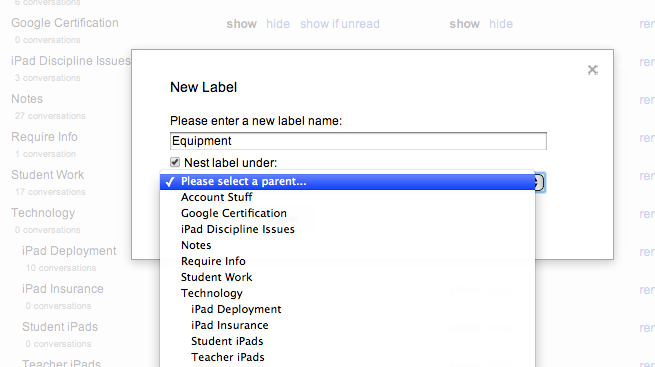
For example, since I'm in charge of all things technology related at my school, I order a lot of things for the teachers at our school.  I use labels to help me keep those organized.  I have the labels for
technology and under that I have additional labels for the different sub-categories that they related to.  Including "teacher iPads", "student iPads", "equipment", etc.   The labels allow me to find what I'm looking for quickly.  And as you can tell from my picture, creating labels and adding nesting titles is super EASY!

Now I was going to create a video tutorial to show you all how to do this, but when I came across this one below, I figured why recreate the wheel?  As a fellow teacher, I'm sure you can all appreciate that mindset.  So without further adio, check out this video and start labeling your emails to increase your productivity!


What are some ways you are going to use the labels feature in Gmail to better assist you at work?


Related Posts Plugin for WordPress, Blogger...